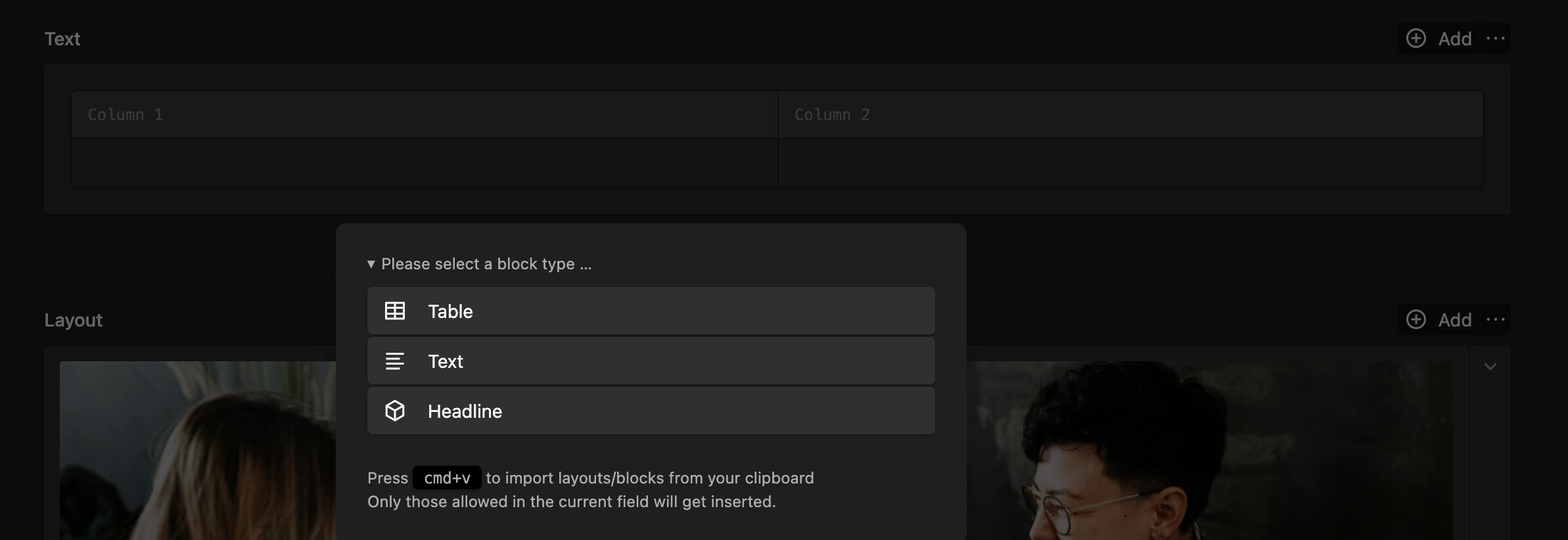
I’m trying out Kirby with the StarterKit, and wanted to use the Table plugin for the About us page. The About us page lets you add blocks, so I wanted “Table” to be an option in the popup blocks menu. I’ve installed the plugin as per the instructions except I’m stuck on this step “Add the block to your blueprint.” The YAML given is: fields: text: type: blocks fieldsets: - table
I’m guessing I need to put this in /site/blueprints/pages/about.yml. Some sources online say it needs to go in /site/default/pages/default.yml. Anyway, I tried putting it in both, but can’t get the custom block to appear as an option with the other blocks when you click the “+” sign.
For example, about.yml has: tabs: content: icon: text label: Content fields: layout: label: Layout type: layout layouts: - “1/1” - “1/2, 1/2” - “1/3, 1/3, 1/3”
So I added some code for blocks as suggested: tabs: content: icon: text label: Content fields: layout: label: Layout type: layout layouts: - “1/1” - “1/2, 1/2” - “1/3, 1/3, 1/3” text: type: blocks fieldsets: - heading - text - list - table
I’ve tried playing with indents and even pulling another fields array out by itself: fields: text: type: blocks fieldsets: - heading - text - list - table
The best I can do is get a separate panel in the editing screen where I can insert a table (so the Table plugin seems to be working). I don’t want that. I just want “Table” to be a block option in the existing panels. Does anyone know how I achieve that?
I’m guessing I’ve got the wrong nesting in the YAML, but I am unable to discover what the right nesting would be.
The custom blocks tutorial seems to assume your blueprint file is empty, and the AI answers says “Find the type: blocks section of your blueprint file”, but I can’t find a type: blocks section in the StarterKit blueprints.
Thanks for the reply! Yes, I did. I also created the snippet in /site/snippets/blocks/table.php. So basically I followed the instruction under Block usage. I just wasn’t sure where to put the YAML under “Add the block to your blueprint:”. I can get the YAML to create a separate text panel below the main textarea and insert a table there, so the Table plugin seems to be working in some fashion. I just can’t get “Table” to show as an option for the main textarea.
Thanks. Yes, that works for me, but I wanted to put a table in the area labelled “Layout” (see where the red arrow is pointing in the first screenshot). Imagine I’m a non-technical editor, and the “Layout” area shows me the components of the page. I want to add a table at the bottom of the page, so I click the plus sign at the bottom of the page and the “Select a layout” dialogue shows. I choose a blank row (no columns) then want to insert a table in that row, but there is no table option in the “Choose a block” dialogue, just the default blocks. Is there any way to give them the table option?
Sorry - perhaps I’m completely misunderstanding how Kirby works!
Then you have to add that block to the available blocks in the layout field, works the same way as adding it to a blocks field, by setting the fieldsets property, see docs: Layout | Kirby CMS
Yes, that’s it! Thanks a lot! All the examples I’d seen had blocks in a “fields” array in the YAML so I assumed I had to do that somehow. I didn’t know you could make “fieldsets” a direct descendant of “layout”. I’ll have to read up more about it. Thanks for your help.